
Build a Form by Describing It: Meet Easy Form Creation
You already know what your client questionnaire needs to ask. You've sent some version of it dozens of times, as a PDF attachment, a Google Doc or a long email with numbered questions.
Getting it into a form builder is the part that stays on the to-do list. A blank canvas at 9pm, after a full day of client work, is a hard place to start.
Easy form creation gives you a different starting point. Describe the form you need in a sentence, or upload the PDF you already use, and Dubsado drafts the structure for you. You review it, make it look and sound like you and send it.
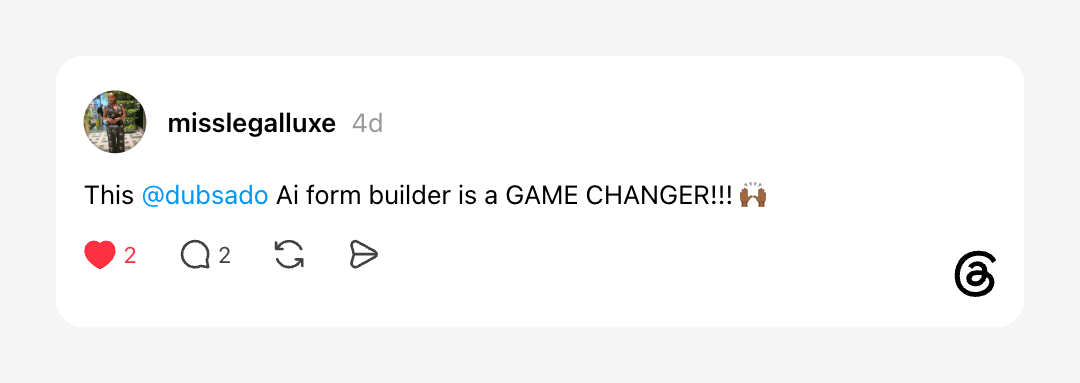
One Dubsado customer summed it up on Threads:
What you get back
You get a working draft of your form, built in the form builder while you watch. Sections are laid out, questions are in place and the starter content is written from the details you gave.
It works on all five Dubsado form types: questionnaires, proposals, lead captures, contracts and sub-agreements. Dubsado picks the type from your description, or you can name the type yourself.
Smart fields are connected for you. Fields like first name, last name, email address, phone number and dates are mapped to your client and project data. You don't need to remember any smart field syntax.
You get a summary when it's done. The chat panel recaps the sections it built, the smart fields it added and anything worth a second look for that form type.
The design stays yours. Your brand colors, your voice and the personal touches that tell a client they're working with you are still your call. Packages are too. Dubsado can add a package element to the form, and you choose which of your packages and prices go in it.
Three ways to start
Go to forms, then form templates, and click new form template. The prompt box that opens is your starting point.
Describe the form you need
Type a description of your form into the prompt box.
Click generate template.
Watch the form come together in the form builder, element by element.
Review it on the canvas and click save form.
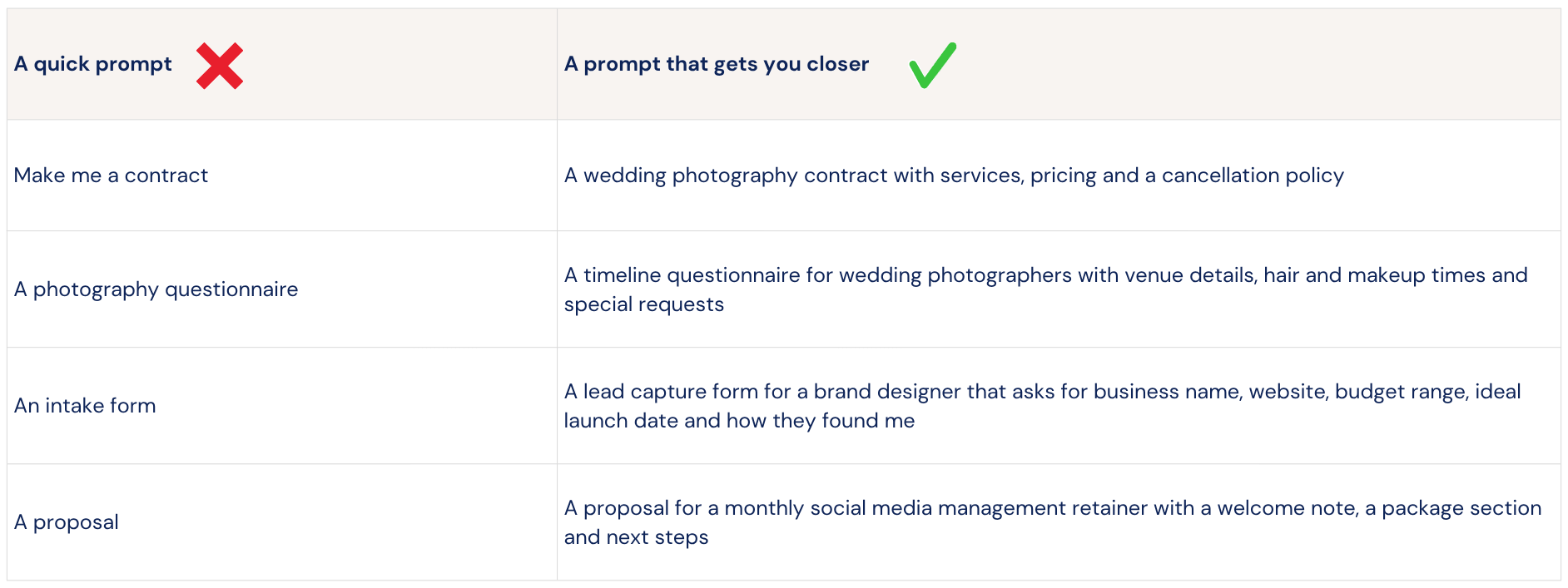
The detail you give decides how much editing you do later. "A timeline questionnaire for wedding photographers with venue details, hair and makeup times and special requests" gets you a much closer draft than "a photography questionnaire."
Upload a PDF you already use
The timeline you send wedding clients, your podcast guest intake, the onboarding form you've been emailing as an attachment. Click convert a PDF, choose the file and Dubsado reads the structure and turns it into a form clients can fill out.
Files need to be PDFs under 10MB. Save a Word or Google Doc as a PDF first.
If the PDF has a past client's answers in it, check "This PDF already has data filled in." Dubsado will build blank, reusable fields from it.
Clean, text-based PDFs convert best. A blurry scan or handwriting will need more cleanup.
You can upload a PDF and type notes in the same prompt, like which form type you want or what to change.
Chat to edit
Once your form generates, a chat tab opens in the form builder sidebar. Type what you want changed and press enter.
"Move the venue questions above the timeline."
"Add a dropdown for package size."
"Make the welcome message warmer."
The form updates as you go and the changed elements are highlighted on the canvas. You can still click any element to edit it by hand or drag in new ones from the elements panel. Save after each round of changes.
Chat editing also works on forms you built before. Open any existing form, click the chat tab and describe the change.
How to get a stronger first draft
A good prompt names the form type, who the form is for and the sections or questions you need. Write it the way you'd brief an assistant on their first day.
If a draft misses, you have options. Ask for changes in the chat, generate again with a more detailed prompt or click "Start from scratch instead" to open the form builder you already know.
Before you send it
Give every generated form a two-minute review.
Read it top to bottom as if you were the client
Check that date fields and other smart fields match the triggers in your workflows
Choose your packages and pricing in any package element
Have anything with legal weight, like a contract, reviewed
Add your brand colors, images and voice
Save the form
Where to find it
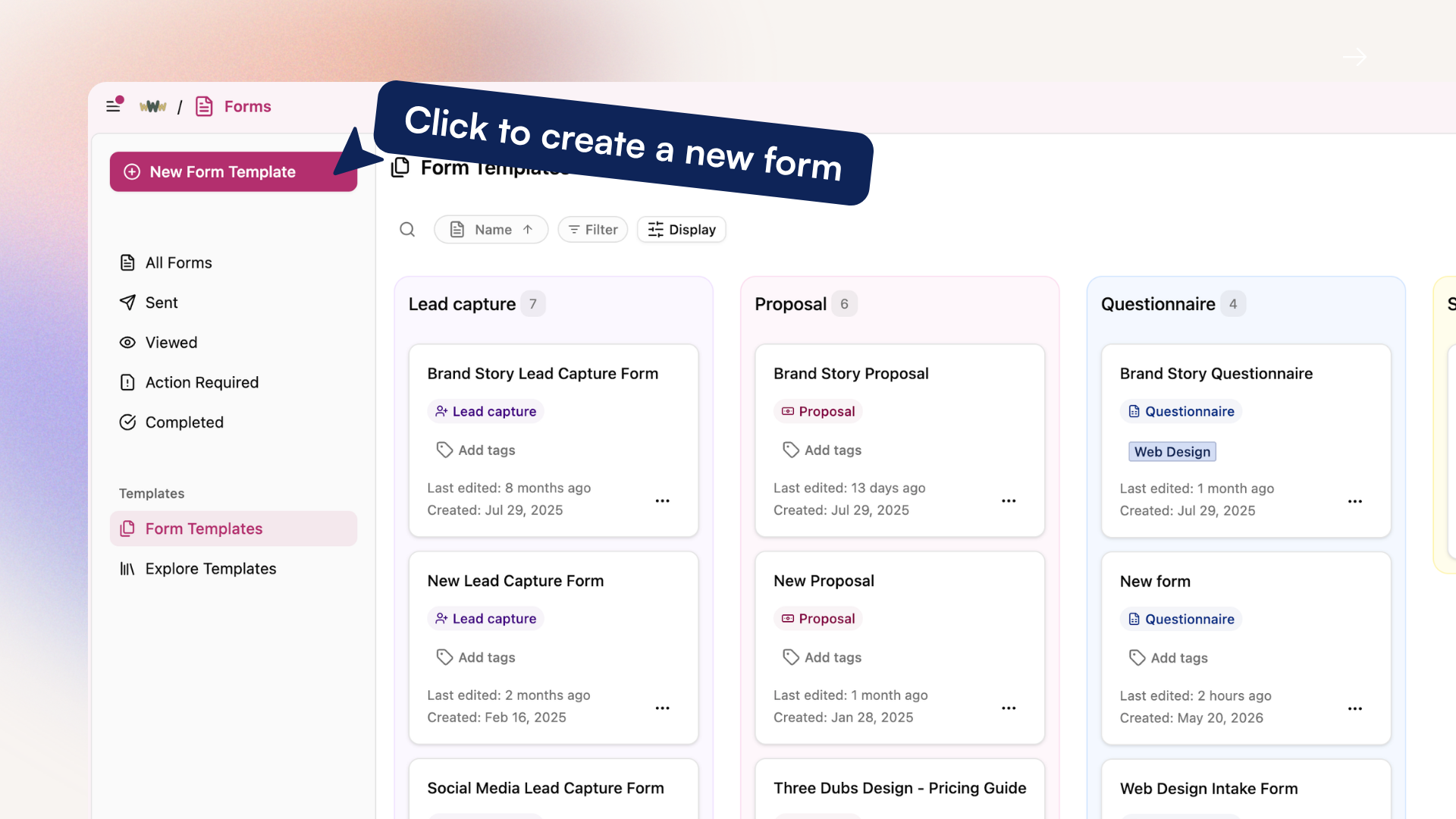
Easy form creation is available on all plans in Dubsado 3.0. Open your forms page, click new form template and the prompt box is right there.
The form builder hasn't gone anywhere. Click "Start from scratch instead" any time you'd rather build by hand, and use the builder to design and refine whatever you generate.
Your form content stays yours. Dubsado doesn't train on customer data.
Pick the form that's been sitting on your list the longest, the one that still lives in a PDF or an email draft, and try it there first.
For the full walkthrough, read the easy form creation help article or the release notes.